

Google says it does not use private documents to train its main AI models. However, your files can still power some AI features. They may also be exposed if you share them publicly or use tools like Gemini. You can limit how AI uses your work by tightening privacy settings, changing how you share files, and updating your daily habits.
What AI Training Really Means?
People often confuse different AI practices when talking about Google Docs. To understand the risk, you must separate them.
Your documents can interact with AI in three main ways:
First, Google scans them for "smart" features like spell check, suggestions, and search. Second, generative tools like Gemini or “Help me write” read your content on demand. These tools may use your prompts or snippets to improve their models. Third, if a document is public, AI models can scrape it as part of massive web datasets, just like any other webpage.
This is why teams worry about confidentiality. Sensitive client briefs, internal strategies, and personal data are risky if they end up in future AI datasets.
What Google Says About Docs and AI?
Google claims it does not use private Docs to train general AI models. It says it processes this data mainly for search, spam detection, and safety. However, its privacy policy allows it to use publicly available information to improve models. It also integrates Gemini closely with Docs, Gmail, and Drive.
There is an important detail here.
Even if private files don't train core models, AI assistants like Gemini for Workspace or Gemini Deep Research may still learn from your prompts and context. This happens especially if you enable feedback options. Also, any document you make publicly discoverable can be used for large-scale AI training.
This ambiguity creates risk for organizations. Assurances today could change with a quiet update to the terms of service tomorrow.
Practical Steps Inside Google Docs and Google Account
To stop Google Docs from feeding AI, focus on three areas: smart features, generative assistants, and account data.
Turn off Docs smart features: In a document, go to Tools → Preferences. Disable smart suggestions like Smart Compose. This limits how much content goes through predictive systems.
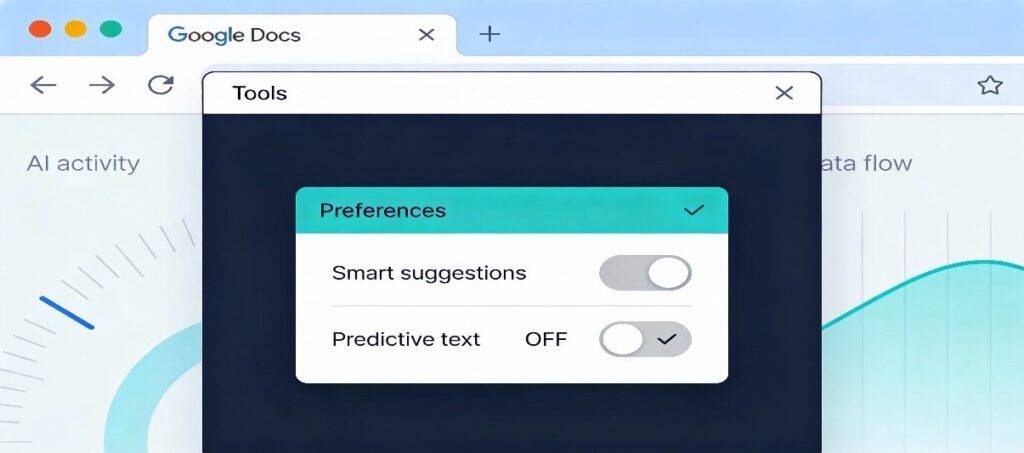
Disable cross-product smart features: On a desktop, open Gmail and go to Settings → See all settings. Scroll to "Smart features and personalization" and turn them off for Gmail, Chat, and Meet. Since Google links these settings, this may also reduce generative options like “Help me write” in Docs.
<!-- wp:image {"id":11236,"width":"59